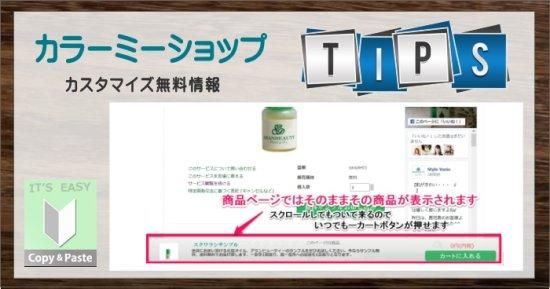
開いている商品ページの商品をピックアップ&おすすめ商品1番目ピックアップ!
みなさんこんにちは!今回はピックアップスクロールバーでカスタマイズの第4回目です。
このバーは画面上で常に表示され、画面をスクロールしても自動で付いてくる上に、カートボタンも付いていますので商品をピックアップするには最適です。
今回はピックアップスクロールバーの【完成形】で複合カスタマイズのご紹介をさせていただきます。
このスクロールバーでは、現在見ている商品ページであればその商品が、商品ページ以外のページに行けばおすすめ商品1番目に登録してある商品が表示されます。方法はいつものように簡単、完全にコピペだけでカスタマイズできちゃいますので気に入ったらコピペしてご使用下さい。
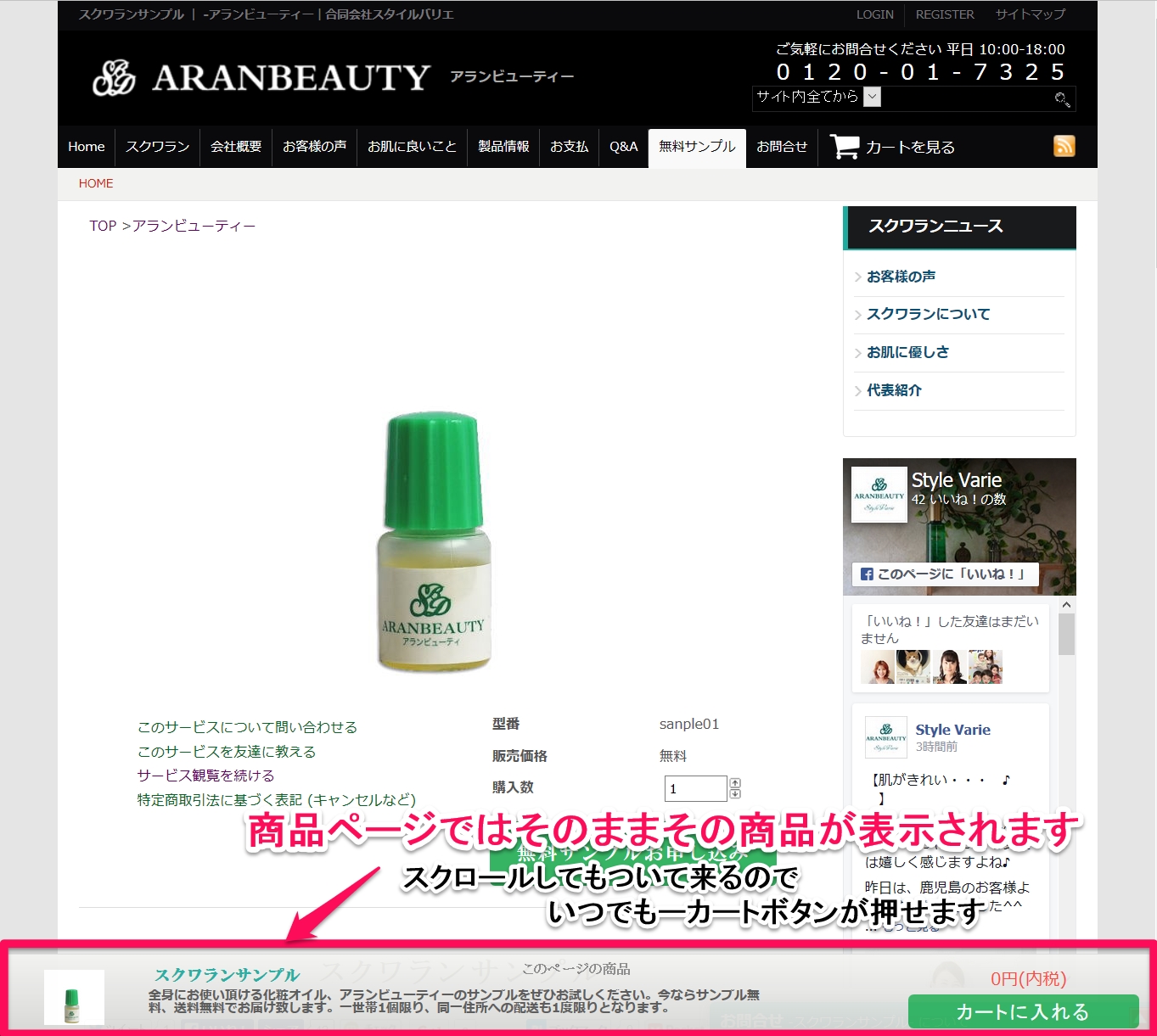
1.商品ページを開いている場合
開いている商品が下のバーにも表示されます。スクロールしても付いてきますので、お客様はどこのスクロール位置からでもその商品を購入することができます。
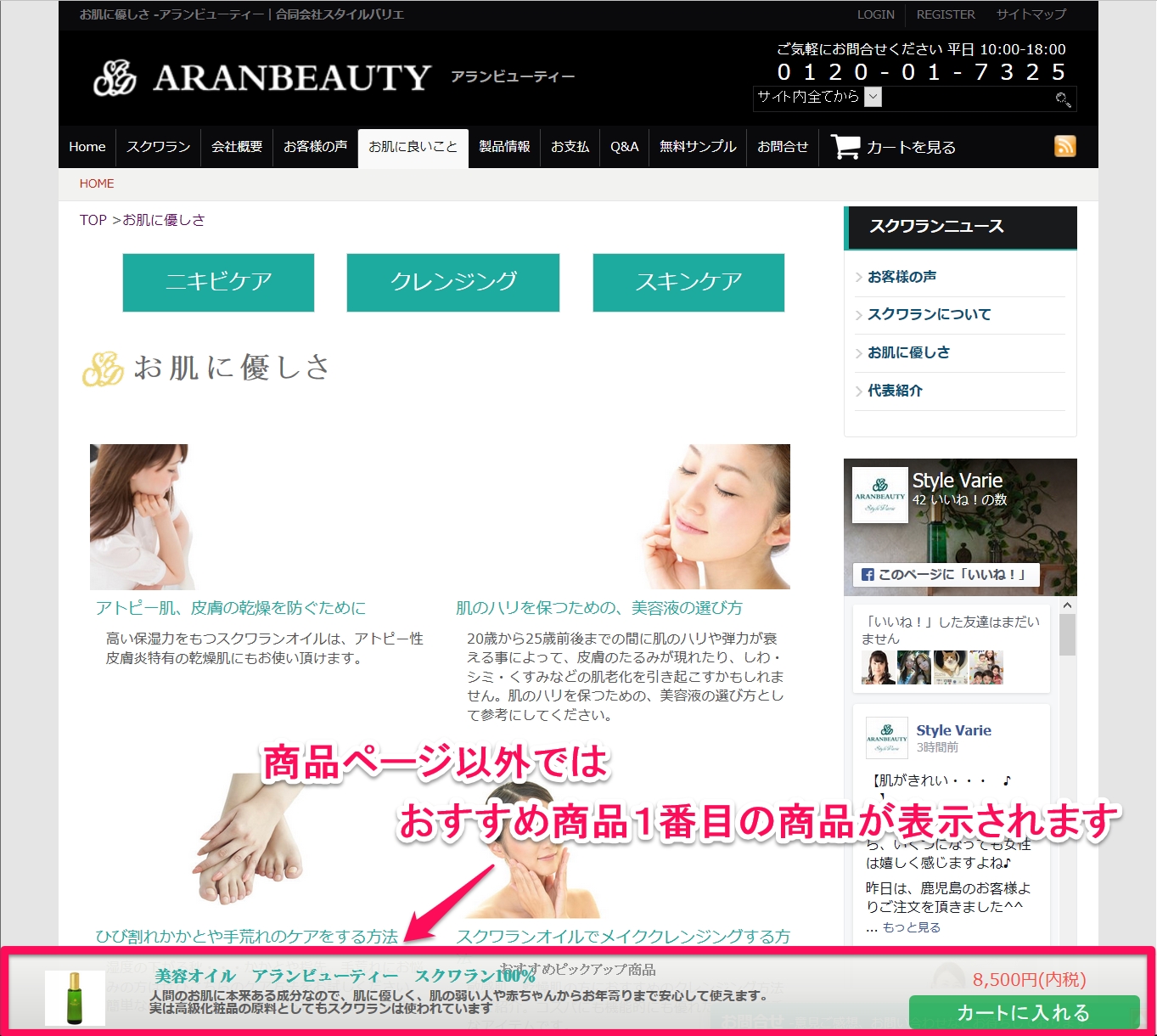
2.商品ページ以外のページでは
おすすめ商品の1番目に登録してある商品がおすすめピックアップ商品として表示されます。
売り切れ表示も実装しております。

【完成形】開いている商品ページの商品をピックアップ&おすすめ商品1番目ピックアップ!でカスタマイズのコード
デザイン設定の共通のHTML設定の一番下に下記のコードをコピペして下さい。
HTMLコード
<{if $tpl_name == 'product'}><{*--商品ページだったら--*}> <div class="under-bar"> <p class="under-bar-header">このページの商品</p> <{if $product.img_url != ""}> <div class="img-box"> <img alt="<{$product.name}>" border="0" src="<{$product.img_url}>" title="<{$product.name}>"></div> <{/if}> <div class="right-body"> <p class="under-title"><{$product.name}></p> <p class="quick-instruction"><{$product.simple_explain}></p> </div> <div class="under-price"><{$product.sales}></div> <{if !$product.soldout_flg}> <form name="under-product_form" method="post" action="http://secure.shop-pro.jp/?mode=cart_inn"> <input type="hidden" name="product_num" value="1" /> <input type="submit" name="underbar-caart-button" value="カートに入れる" /> <input type="hidden" name="product_id" value="<{$product.id}>" /> <input type="hidden" name="user_hash" value="<{$smarty.request.PHPSESSID}>" /> <input type="hidden" name="members_hash" value="<{$smarty.request.PHPSESSID}>" /> <input type="hidden" name="shop_id" value="<{$view_inq_url|regex_replace:'/.+shop_id=/':''|regex_replace:'/&.+/':''}>" /> <input type="hidden" name="members_id" value="<{$members_id}>" /> <input type="hidden" name="back_url" value="http://<{$smarty.server.HTTP_HOST}><{$smarty.server.REQUEST_URI}>" /> </form> <{else}> <p class="under-bar-sould-out">売り切れ</p> <{/if}> </div> <{else}><{*--*}> <div class="under-bar"> <p class="under-bar-header">おすすめピックアップ商品</p> <a href="<{$recommend[0].link_url}>"> <{if $recommend[0].large_img_url != ""}> <div class="img-box"> <img alt="<{$recommend[0].name}>" border="0" src="<{$recommend[0].large_img_url}>" title="<{$recommend[0].name}>"></div> <{/if}> <div class="right-body"> <p class="under-title"><{$recommend[0].name}></p> <p class="quick-instruction"><{$recommend[0].s_expl}></p> </div> </a> <div class="under-price"><{$recommend[0].price}></div> <{if !$recommend[0].soldout_flg}> <form name="under-product_form" method="post" action="http://secure.shop-pro.jp/?mode=cart_inn"> <input type="hidden" name="product_num" value="1" /> <input type="submit" name="underbar-caart-button" value="カートに入れる" /> <input type="hidden" name="product_id" value="<{$recommend[0].id}>" /> <input type="hidden" name="user_hash" value="<{$smarty.request.PHPSESSID}>" /> <input type="hidden" name="members_hash" value="<{$smarty.request.PHPSESSID}>" /> <input type="hidden" name="shop_id" value="<{$view_inq_url|regex_replace:'/.+shop_id=/':''|regex_replace:'/&.+/':''}>" /> <input type="hidden" name="members_id" value="<{$members_id}>" /> <input type="hidden" name="back_url" value="http://<{$smarty.server.HTTP_HOST}><{$smarty.server.REQUEST_URI}>" /> </form> <{else}> <p class="under-bar-sould-out">売り切れ</p> <{/if}> </div> <{/if}>
CSSコード
デザイン設定の共通のCSS設定の一番下に下記のコードをコピペして下さい。
/***************ピックアップスクロールバー*************************/ .under-bar { border-top: 1px solid #DBDBDB; bottom: 0; box-shadow: 0 -2px 6px -3px rgba(0, 0, 0, 0.2); height: 75px; opacity: 0.95; position: fixed; right: 0; top: auto; width: 100%; z-index: 999; background: -webkit-gradient(linear, left top, left bottom, from(#f2f2ef), to(#d6d6d4)); background: -ms-linear-gradient(top, #f2f2ef, #d6d6d4); background: linear-gradient(to bottom, #f2f2ef, #d6d6d4); } .under-bar p.under-bar-header { color: #888888; font-family: "MS P明朝","MS PMincho","MS 明朝",serif; font-size: 13px; font-weight: bold; margin: 5px 0 0; padding: 0; text-align: center; } .under-bar .img-box img { bottom: -100%; left: -100%; margin: auto; max-height: 52px; max-width: 130px; padding: 5px; position: absolute; right: -100%; top: -100%; } .under-bar .right-body { bottom: 0; height: 60px; margin: 5px 0 0 130px; padding: 0 5px; position: absolute; width: 55%; } .under-bar .img-box { bottom: 20px; height: 75px; margin: 0 5px; position: relative; width: 130px; } .under-bar p.under-title { color: #1EAB9F; font-family: "ヒラギノ明朝 ProN W6","HiraMinProN-W6","HG明朝E","MS P明朝",arial,sans-serif; font-size: 15px; font-weight: bold; margin: 5px 0 0; padding: 0 10px 5px; } .under-bar p.quick-instruction { color: #545454; font-size: 12px; font-weight: bold; height: 3em; line-height: 12px; margin: 0; overflow: hidden; padding: 0 5px; } .under-bar input[name="underbar-caart-button"] { background-color: #36B363; border: medium none; border-radius: 5px 5px 5px 5px; bottom: 5px; color: #FFFFFF; font-size: 18px; height: auto; letter-spacing: 2px; margin: 0; padding: 5px 0; position: absolute; right: 15px; width: 20%; } .under-bar input[name="underbar-caart-button"]:hover { opacity: 0.7; } .under-bar-sould-out { background-color: #F9423A; border: medium none; border-radius: 5px 5px 5px 5px; bottom: 5px; color: #FFFFFF; font-size: 18px; height: auto; letter-spacing: 2px; margin: 0; padding: 5px 0; position: absolute; right: 0; text-align: center; right: 15px; width: 20%; } .under-price { bottom: 42px; color: #F9423A; font-size: 16px; margin: 0 10px 0 0; position: absolute; right: 0; text-align: center; width: 20%; }
以上、コピペで簡単カスタマイズでした
いかがでしたでしょうか?ピックアップスクロールバーは応用すれば色々カスタマイズができますよ。今後もお手軽簡単に、皆様にご活用いただけるTIPSをご紹介させていただきますので楽しみに待っていて下さい。
過去記事を読まれていない方へ
結局、ピックアップスクロールバーのカスタマイズは4回に渡ってのご紹介になりましたので、よろしければご参考まで、以下の回も併せて御覧ください。
- コピペで簡単カスタマイズ!おすすめ商品の1番めの商品がスクロールで常に付いてくる
- コピペで簡単カスタマイズ!最近チェックした商品をピックアップ!
- コピペで簡単!開いている商品ページの商品をピックアップでカスタマイズ!
もし他にレイアウト調整などのお悩みがございましたら、レイアウト調整等5,000円~承ります。別途、弊社独自カスタマイズもございますのでお気軽にお問あわせください。